
Getting Started
First Workspace Setup
Start with the default Workspace and the widgets that matter for your daily review. It is the fastest way to get into the flow of building a custom dashboard and save the layout you want to repeat.
Start with the default Workspace and the widgets that matter for your daily review. It is the fastest way to get into the flow of building a custom dashboard and save the layout you want to repeat.
How to access
- After signing in, the Genesis Risk Monitor Platform opens on your default Workspace.
- You can change it by selecting or creating a different one from the workspace menu, on the top right of the main navigation bar.
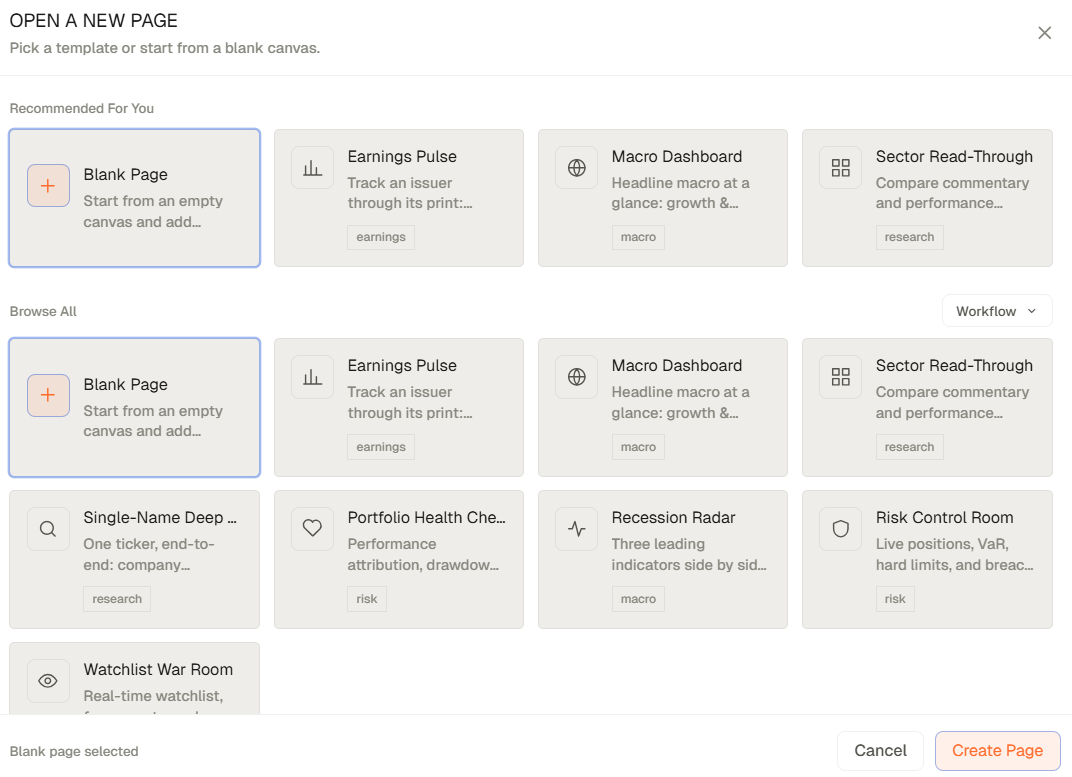
- You can add a new page by clicking the "+" button next to your workspace name, under the main navigation bar. You can choose to start with a blank page or select from a set of pre-built templates designed for common workflows.
- If you chose a blank page, Open the Widget Catalogue to add the widgets of your choice.
- The layout will be saved automatically as you build, so the next time you open the app your workspace will be ready to go with the same widgets in the same place.
Related topics
- Onboarding
- Workspace
- Setup